

Group chats can get messy fast. When you have several conversations going with different circles of friends, family, or coworkers, telling them apart by just looking at a list of names can be frustrating. Learning how to name a text group on iPhone is a quick fix that makes your Messages app much easier to navigate. You can give each chat a clear label—and even a photo—so you always know exactly who you are talking to. This guide walks you through the process using Apple’s official instructions, explains why the option sometimes disappears, and shares tips to keep your chats organized.
What You Need Before You Start
Before you can name a group, there is one important requirement to check. You can only name a group iMessage conversation. This means everyone in the group must be using an Apple device, such as an iPhone, iPad, or iPod touch .
If even one person in the chat is using an Android phone or has iMessage turned off, the conversation will fall back to SMS/MMS. You will notice this because the message bubbles will be green instead of blue. In a green-bubble group, Apple does not allow you to set a custom name that everyone can see .
How to Name a Text Group on iPhone (Step-by-Step)
If your group chat has blue bubbles, here is how to name a text group on iPhone. The exact steps vary slightly depending on which version of iOS you are running.
For iOS 26 or Later
- Open the Messages app and tap on the group conversation you want to name.
- Tap the group icons (the circles with your contacts’ photos) at the top of the message thread .
- Tap Edit.
- Tap Edit Name & Photo .
- Enter your desired name for the group.
- (Optional) Tap the Camera button to take a photo, or choose an emoji or Memoji as the group icon.
- Tap Done to save.
For iOS 18 or Earlier
- Open the Messages app and tap the group chat.
- Tap the group icons at the top of the screen. (If you are on iOS 14 or earlier, tap the icons and then tap the “i” info button) .
- Look for the blue text that says Change Name and Photo just below the contact icons and tap it .
- Type in the new group name.
- Add a photo or emoji if you like.
- Tap Done in the top corner to save your changes.
Once you save, anyone else in the group who is using iMessage will also see the new name and icon you set .
Why Is the “Name Group” Option Missing?
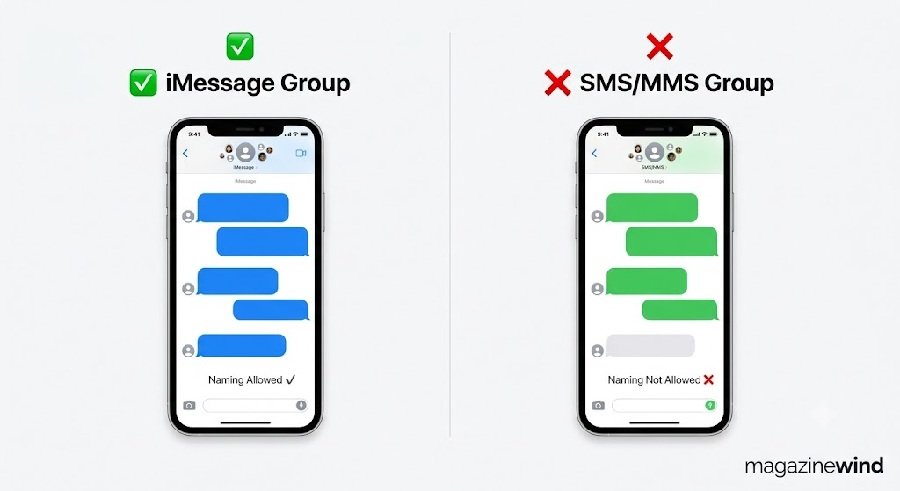
One of the most common questions is why the naming option does not appear. If you do not see “Change Name and Photo” or the Edit button, it almost always comes down to the type of message being used.
- Green Bubbles (SMS/MMS): As mentioned, if anyone in the group is not on an Apple device, the chat is an SMS/MMS group. Apple simply does not support naming these types of conversations .
- RCS Groups: If you are using RCS messaging (which also shows green bubbles on iOS 18), you also cannot name the group .
- One-on-One Chat: You cannot name a conversation that only has one other person in it. Naming only works for groups .
Unfortunately, there is no workaround to force a name onto an SMS group. Your only option is to ensure everyone in the chat has an iPhone and iMessage enabled.
How to Change or Remove a Group Name
If you already named a group but want to update it or clear it out, you can do so at any time. The process is exactly the same as naming it for the first time.
- Open the group chat.
- Tap the group icons at the top.
- Tap Edit (on iOS 26) or Change Name and Photo (on iOS 18 and earlier).
- To change the name, simply delete the old text and type a new one.
- To remove the name entirely, delete all the text in the name field and tap Done.
If you remove the name, the chat will revert to displaying the names or phone numbers of the people in the conversation.
Helpful Tips for Group Naming
- Keep it short: A brief name is easier to read in the Messages list.
- Use emojis: You can add an emoji to the group photo slot to make the chat instantly recognizable without even reading the name.
- Remember the limit: Group names are only visible to other iMessage users. If someone in the group switches to Android, the name may disappear for them.
- Everyone can see it: Keep in mind that when you name a group, the name is visible to everyone in the chat, not just you .
Frequently Asked Questions
Q1: Can I name a group text if one person has an Android?
No. If any member of the group is not using an Apple device, the chat becomes an SMS/MMS group. You cannot set a custom group name for these conversations .
Q2: Why can’t I see the “Change Name and Photo” option?
This usually means your group chat is using SMS/MMS (green bubbles) instead of iMessage. It can also happen if you are on an older version of iOS, though the option has been available for several versions. Check that everyone in the group has iMessage enabled .
Q3: Will other people see the name I give the group?
Yes. As long as everyone in the group is using iMessage, the name and photo you set will update for all members .
Q4: Can I name a group chat with just one other person?
No. The naming feature is only available for group conversations with two or more recipients .
Q5: How do I remove a group name?
Follow the same steps to edit the name, delete all the text in the name field, and tap Done. The group will go back to showing the contact names or numbers.
Conclusion
Learning how to name a text group on iPhone is a small change that makes a big difference in keeping your Messages app organized. The key takeaway is that this feature relies on iMessage. If your group has blue bubbles, you can add a name and photo in just a few taps. If you see green bubbles, the option will not be available. By following the steps above, you can easily label your family, work, or friend groups so you never send a message to the wrong chat again.