
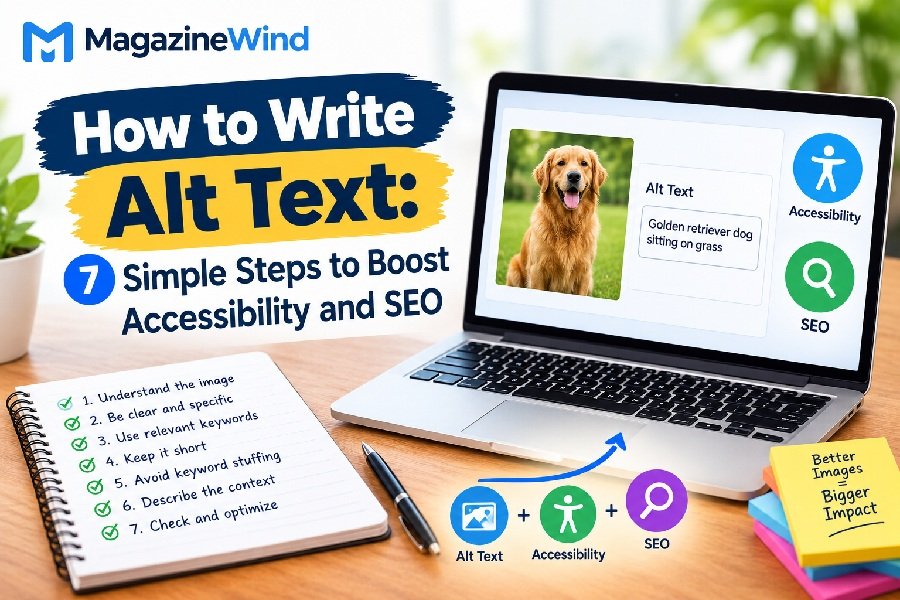
How to Write Alt Text is one of those small skills that makes a big difference. Alt text (alternative text) is a short description attached to an image on a web page. It helps people who use screen readers understand what the image shows. It also helps search engines figure out what your image is about. The best part? You do not need to be a developer or an SEO expert to do it well. This beginner-friendly guide walks you through the process step by step, with clear examples and practical tips you can use right away.
What Is Alt Text and Why Does It Matter?
Alt text is a short, descriptive text that acts as a substitute for an image . When an image cannot be seen—because a visitor is blind, has low vision, or the image fails to load—the alt text takes its place.
There are two main reasons to care about alt text:
- Accessibility: Screen readers read alt text aloud so blind and low-vision users can understand the image’s content and purpose .
- Image SEO: Google uses alt text, along with computer vision and page content, to understand what an image is about. Good alt text can help your images appear in search results .
Alt text is not a place for keyword stuffing. It is a place for clarity.
How to Write Alt Text: Step-by-Step
Follow these steps every time you add an image to a page.
Step 1: Look at the Image and Ask “What Is Its Purpose?”
Before you type anything, decide why the image is on the page. Is it showing a product? Illustrating a step in a tutorial? Adding decoration? The answer shapes your description. Google’s guidance emphasizes explaining the image in context—the same photo might need different alt text on different pages .
Step 2: Write One Short, Clear Sentence
Keep it brief. One phrase or one or two sentences is enough . Long descriptions interrupt the reading flow for screen reader users.
Step 3: Skip “Image of” or “Photo of”
Screen readers already announce that the element is an image. Starting with “Image of” wastes the reader’s time .
Step 4: Focus on What Matters, Not Every Detail
Describe the important content. If the image is a chart showing sales growth, say “Bar chart showing 20% sales growth from 2024 to 2025.” You do not need to mention the chart’s colors or font .
Step 5: Use Empty Alt Text for Decorative Images
If an image is purely decorative—like a horizontal line or a background pattern—use an empty alt attribute (alt=""). Screen readers will skip it entirely . This is better than leaving alt text off, because a missing alt attribute can cause screen readers to read the file name aloud .
Step 6: Handle Complex Images with a Longer Description
For flowcharts, graphs, or detailed diagrams, write a short alt text and then provide a fuller explanation in the page text or a linked page . The alt text gives the gist; the page text gives the details.
Step 7: Review and Refine
Read your alt text aloud. Does it sound natural? Does it tell someone who cannot see the image what they need to know? If yes, you are done.
Best Practices for Clear and Useful Alt Text
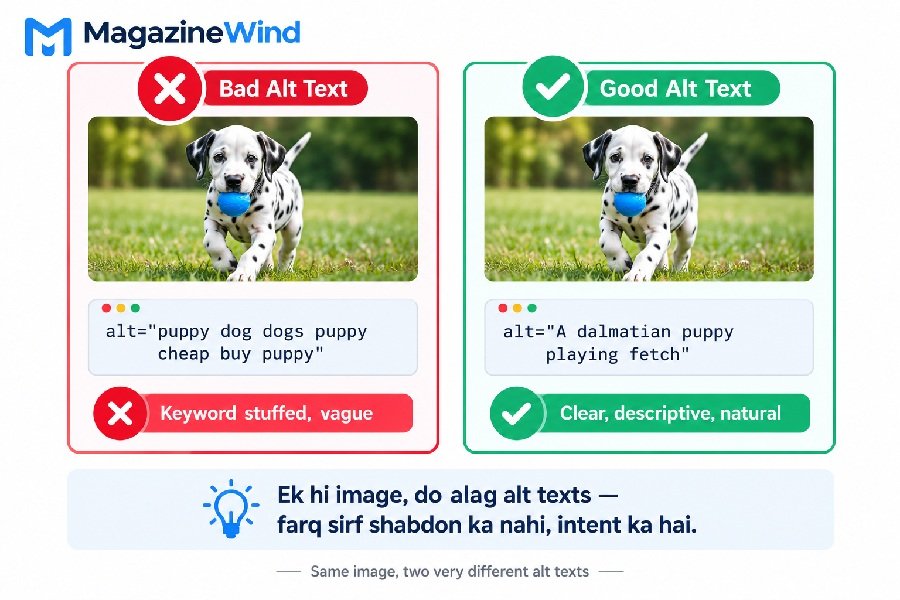
- Be specific and descriptive. “A dalmatian puppy playing fetch” is better than “puppy” .
- Match the page content. Alt text should relate to the surrounding text and the page’s topic .
- Keep it concise. Aim for roughly 125 characters or less, though one or two short sentences is the real guide .
- Capitalize the first word and end with a period. This helps screen readers pause naturally .
- Avoid redundant phrases. Do not repeat information already in a caption or nearby text .
How Alt Text Helps Accessibility and Image SEO
Alt text serves two audiences at once, and doing it well helps both.
For accessibility: Alt text is a core requirement of the Web Content Accessibility Guidelines (WCAG). It ensures that people using screen readers, braille displays, or text-only browsers can still understand your content . When alt text is missing, that group of users loses information entirely.
For image SEO: Google’s documentation states that alt text, combined with computer vision and page content, helps the search engine understand images . Descriptive alt text can also serve as link text if you use an image as a link. However, Google explicitly warns against stuffing alt attributes with keywords—this creates a poor user experience and can make a site look spammy .
The honest takeaway: write for people first. Search engines reward the same clarity that humans need.
Good vs. Bad Alt Text Examples
The pattern is simple: bad alt text is vague, stuffed, or useless. Good alt text paints a quick mental picture.
When to Include Keywords (and Why to Avoid Stuffing)
You can include a keyword in alt text if it naturally describes the image. For example, if you sell running shoes and the image shows a specific model, alt="Blue TrailRunner X2 running shoe side view" is helpful and relevant.
But keyword stuffing—like alt="running shoes running shoe cheap running shoes buy running shoes"—hurts more than it helps. Google’s documentation calls out this exact problem: excessive keywords in alt attributes cause a bad user experience and may be treated as spam .
Rule of thumb: If the keyword fits naturally into a sentence describing the image, use it. If you have to force it, leave it out.
Common Alt Text Mistakes and How to Fix Them
Mistake 1: Leaving alt text blank on informative images.
Fix: Every image that conveys information needs alt text. Only decorative images should have alt="" .
Mistake 2: Writing “image of” or “photo of.”
Fix: Delete those phrases. Start directly with the description .
Mistake 3: Stuffing keywords.
Fix: Describe the image as if you were explaining it to a friend over the phone .
Mistake 4: Using file names as alt text.
Fix: File names like IMG_2043.jpg tell nobody anything. Write a real description.
Mistake 5: Describing every visual detail.
Fix: Focus on the purpose. A screen reader user does not need to know the image’s background color unless it matters to the content .
How to Add Alt Text in WordPress
Adding alt text in WordPress is quick once you know where to look.
In the Block Editor (Gutenberg):
- Click on the Image block.
- Look at the right-hand sidebar under Block settings.
- Find the Alt text field and type your description.
- If the field is not visible, click the three-dot menu and check that the settings panel is open.
In the Media Library:
- Go to Media → Library.
- Click on any image.
- In the Attachment Details panel on the right, find the Alternative Text field.
- Type your description and close the panel. WordPress saves it automatically.
That is all. No plugin is required for basic alt text in WordPress.
Frequently Asked Questions
Q1: What is the ideal length for alt text?
A short phrase or one or two sentences works best. Google recommends keeping it brief so it does not interrupt the screen reader flow . Aim for under 125 characters when possible.
Q2: Should I include keywords in alt text?
Only if they describe the image naturally. Google warns that keyword-stuffed alt text creates a bad experience and may be considered spam .
Q3: What should I write for a decorative image?
Use an empty alt attribute: alt="". This tells screen readers to skip the image entirely .
Q4: Is alt text the same as an image caption?
No. A caption is visible text that appears near the image for all readers. Alt text is read by screen readers and shown when the image fails to load. They can be different, and the alt text should not simply repeat the caption .
Q5: Do I need alt text for every single image?
Every informative image needs it. Decorative images should have empty alt text. Images that contain text (like a logo) need alt text that conveys that text’s meaning .
Conclusion
How to Write Alt Text well comes down to one habit: describe the image’s purpose in plain language, for the people who cannot see it. Keep it short, skip the keyword tricks, and use empty alt text for decoration. The same effort that makes your site more accessible also helps search engines understand your images—but accessibility should always come first. Start with one image today, follow the steps above, and you will be writing useful alt text in minutes.