
Introduction
Have you ever remembered a birthday at midnight and wanted to send a text, but worried it was too late? Or finished a work task at 10 PM and did not want to bother your boss right away? You are not alone.
Knowing how to schedule send text on iPhone solves this problem completely. You write the message now, pick a time, and your iPhone handles the rest. This guide will walk you through every method available, from the built-in Send Later feature to the Shortcuts app workaround for older phones. By the end, you will be scheduling texts like a pro.
What Does Scheduling a Text on iPhone Mean?
Scheduling a text means you compose a message and tell your iPhone to deliver it at a specific future time. You do not need to stay awake, set an alarm, or remember to press send later. Your phone does it for you automatically.
There are two main ways to do this on an iPhone. The first is Send Later, a native feature introduced in iOS 18 that works directly inside the Messages app. The second is Shortcuts, a built-in automation tool that works on older iOS versions and can also send messages to Android phones.
How to Schedule Send Text on iPhone
The method you use depends on two things: your iOS version and who you are texting.
Quick summary:
| Method | Works On | Best For |
|---|---|---|
| Send Later | iOS 18 or later | iMessage (blue bubbles) |
| Shortcuts | iOS 13 or later | SMS, Android, recurring messages |
The built-in Send Later feature is the easiest option. It takes just a few taps. If you are on an older iPhone or need to text an Android user, the Shortcuts method is your solution.
Step-by-Step Guide to Using Send Later in Messages
This is the fastest and cleanest method. You need iOS 18 or later and the recipient must be an iMessage user (blue bubbles) .
Here is how to do it:
- Open the Messages app on your iPhone.
- Open a conversation or start a new one by tapping the compose button.
- Tap the Plus (+) button to the left of the text box .
- Select Send Later from the menu. You might need to tap “More” first to see it .
- Tap the time shown at the top to open the scheduler. Choose your date and time. You can schedule up to 14 days in advance .
- Type your message and tap the Send arrow.
Your message will appear with a dashed line around it. This means it is scheduled. The time you chose will appear above the message. When the time comes, your iPhone sends it automatically, even if your phone is offline .
Good to know: The recipient will not know the message was scheduled. It arrives just like any other text .
How to Schedule Texts Using the Shortcuts App
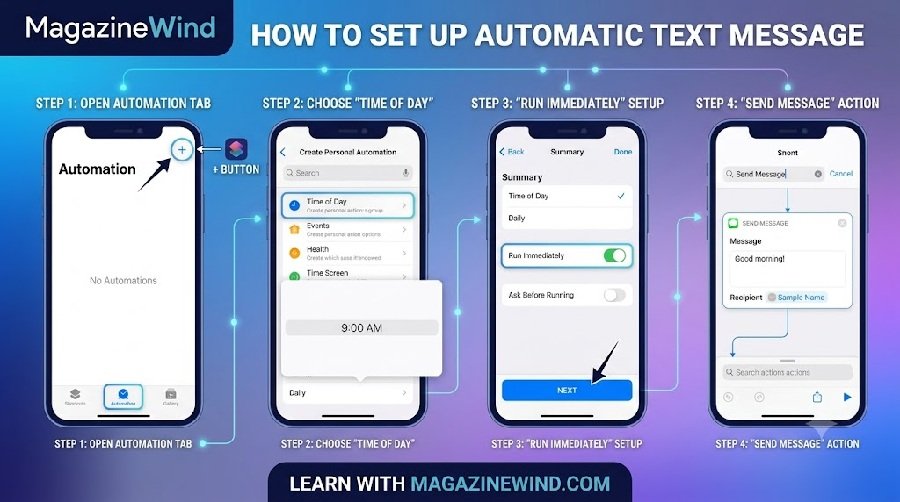
If you have an older iPhone or need to text an Android user, Shortcuts is your answer. This method works on iOS 13 and later .
Here are the steps:
- Open the Shortcuts app on your iPhone.
- Tap the Automation tab at the bottom.
- Tap the + button in the top right corner (or “New Automation”).
- Select Time of Day .
- Set your time and frequency. Choose the time you want the text to send. Decide if it repeats (Daily, Weekly, etc.). Tap Next.
- Choose Run Immediately (or toggle off “Ask Before Running”) if you want it to send without confirmation. Tap Next .
- Search for and select the Send Message action.
- Type your message and choose your recipient .
- Tap Done to save the automation.
Important: The Shortcuts method sends messages at the same time every day or week if you set it to repeat. If you only need it once, remember to delete the automation after it sends .
Can You Schedule Text Messages to Android Phones?
The built-in Send Later feature only works with iMessage. It cannot schedule SMS or RCS messages to Android phones .
However, you can schedule texts to Android using the Shortcuts app. When you set up the automation, the message sends through your cellular network as a standard SMS. Just make sure you have cellular service at the scheduled time .
What to Do If Send Later Is Not Available
If you do not see the Send Later option in your Messages app, here are the most common reasons:
- You are not on iOS 18 or later. Go to Settings > General > Software Update and update your iPhone .
- You are texting an Android user. The Send Later option disappears when the recipient is not on iMessage . Check if the bubbles are green instead of blue.
- iMessage is turned off. Go to Settings > Apps > Messages and make sure iMessage is enabled .
- A minor software glitch. Try force restarting your iPhone: press volume up, press volume down, then hold the side button until the Apple logo appears .
If none of these work, the Shortcuts method will always be available as a backup.
Helpful Tips for Scheduling Text Messages
- You can edit scheduled messages. Tap Edit next to the date above your scheduled message to change the time, send it immediately, or delete it .
- Scheduled messages are encrypted. Apple stores them securely on its servers only until they are sent. After delivery, they are removed from the servers .
- Check your time zone. If you are texting someone in a different country, make sure you calculate the time difference correctly.
- For Shortcuts, delete one-time automations. If you set up a recurring automation but only needed it once, delete it to avoid accidental repeat sends .
Frequently Asked Questions (FAQs)
1. How far in advance can I schedule a text on iPhone?
With the built-in Send Later feature, you can schedule up to 14 days into the future .
2. Will the recipient know I scheduled the text?
No. The message arrives just like any other text. They cannot tell it was scheduled .
3. Can I schedule a text to an Android phone?
Not with Send Later. You must use the Shortcuts app to schedule SMS messages to Android users .
4. What happens if my phone is off when the text should send?
If you used Send Later (iMessage), the message is stored on Apple servers and will still be delivered . If you used Shortcuts, the message sends through your phone, so it will only go out when your phone is back online.
5. Can I delete a scheduled message before it sends?
Yes. Find the message with the dashed line, touch and hold it, and tap Delete. This cancels the message and it will not be delivered .
Conclusion
Now you know exactly how to schedule send text on iPhone. If you have a newer iPhone with iOS 18, the Send Later feature in Messages is the fastest and easiest option. For older phones or Android recipients, the Shortcuts automation gets the job done. With these tools, you never have to worry about bad timing or forgetting an important message again.