
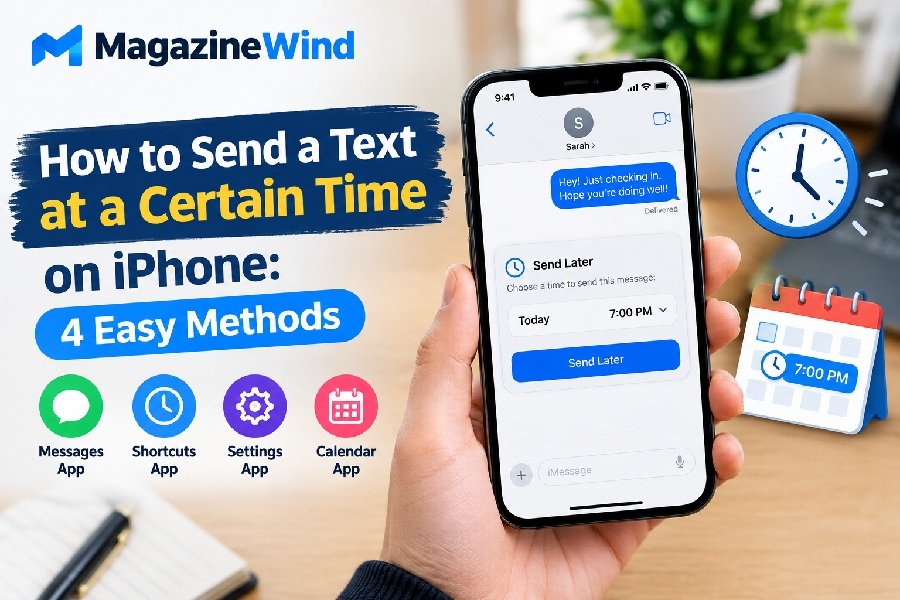
How to Send a Text at a Certain Time on iPhone
How to send a text at a certain time on iPhone used to require workarounds and third-party apps. But things have changed. Whether you want to wish someone a happy birthday at midnight, remind a friend about a meeting in the morning, or simply avoid texting someone too late at night, your iPhone now has a built-in way to schedule messages.
This guide will walk you through every method available, from the official Send Later feature in Messages to the Shortcuts app for older iPhones. We will also cover a business texting solution called Falkon SMS and share a clever Siri trick that acts as a backup reminder.
Why Would You Want to Schedule a Text?
Before we dive into the how-to, let us quickly look at why scheduling texts is genuinely useful.
You do not want to disturb someone at a bad time. It is 11 PM and you just remembered you need to confirm lunch plans for tomorrow. Sending the text now might wake the person up. Scheduling it for 8 AM is more considerate.
You are worried you will forget. Birthdays, anniversaries, follow-ups, and reminders can slip your mind easily. Writing the message now and scheduling it for later ensures it goes out on time, even if you are busy or asleep.
You want to appear thoughtful and organised. Sometimes, sending a message at exactly the right moment matters. A work reminder that arrives at 9 AM sharp looks professional. A birthday text that lands at midnight feels special.
You are travelling across time zones. You might be awake at 2 AM your time, but the person you are texting is in a different country. Scheduling helps you send the message when it is appropriate for them.
How to Schedule a Text on iPhone Using iOS 18 (Built-in Feature)
If you are running iOS 18 or later, you are in luck. Apple finally added a native scheduling feature to the Messages app. Here is how it works.
Important note: This feature only works with iMessage. If you are texting someone who does not have an iPhone, the Send Later option may not work for SMS messages . Your recipient can be using any device to receive the message, and they will not know it was scheduled .
Step-by-Step Instructions
- Open the Messages app on your iPhone.
- Go to the conversation where you want to schedule a message. You can also start a new conversation.
- Tap the Plus (+) button next to the text field.
- Tap Send Later from the menu .
- Tap the time that appears to open the scheduler. Choose the date and time you want your message to be sent. You can schedule up to 14 days in advance .
- Type your message. You will notice a dashed line around the text field, and the scheduled time will appear above it .
- Tap the send button.
Your message will appear in the conversation with a dashed outline and a clock icon. It will stay that way until the scheduled time arrives, and then it will send automatically. Scheduled messages are delivered even if all your devices are offline .
Managing Your Scheduled Messages
Changed your mind? You have options.
To reschedule: Tap Edit above the scheduled message, then tap Edit Time to choose a new time .
To send immediately: Tap Edit above the message, then tap Send Message .
To edit the text: Long-press the message bubble, tap Edit, make your changes, and resend .
To delete: Long-press the scheduled message and tap Delete. This cancels it completely .
How to Schedule a Text on iPhone Using the Shortcuts App (For Older iOS)
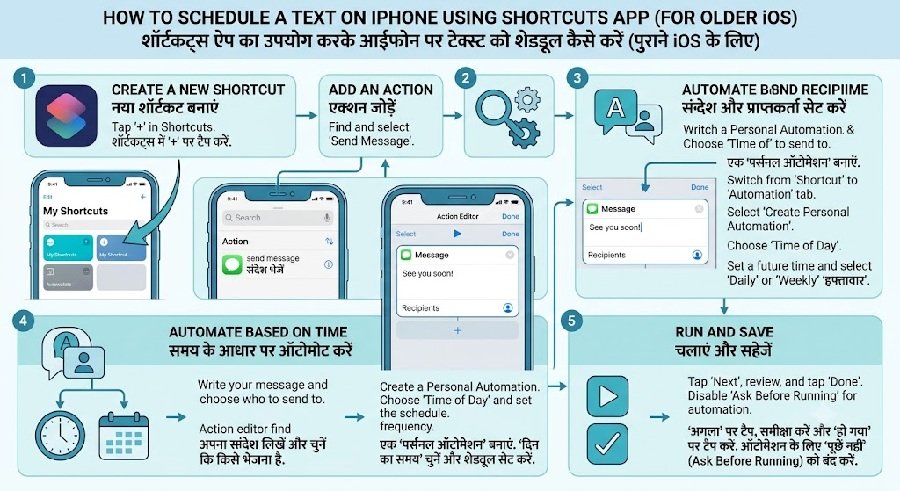
If you are on iOS 17 or earlier, you do not have the built-in Send Later feature. But do not worry. The Shortcuts app has been available since iOS 13, and it can handle scheduled texts just fine .
The Shortcuts method works differently. It creates an automation that triggers at a specific time and sends your message. It is a bit more involved to set up, but it works reliably.
Step-by-Step Instructions
- Open the Shortcuts app on your iPhone.
- Tap the Automation tab at the bottom.
- Tap New Automation (or the + icon if you have created automations before) .
- Choose Time of Day as the trigger .
- Set the date, time, and frequency you want. You can choose daily, weekly, or monthly. For a one-time message, just pick the specific date and time .
- Tap Next.
- Search for and select the Send Message action .
- Type your message and select the recipient from your contacts .
- Tap Done.
- Important: Toggle off Ask Before Running if you want the message to send automatically without any confirmation .
A Key Difference to Understand
The Shortcuts method is designed for recurring messages. If you only want to send a message once, you will need to delete the automation after the message has been sent. Otherwise, it will keep sending the same message on the schedule you set .
A Limitation to Keep in Mind
With Shortcuts, messages are sent through the Messages app. This means you can schedule texts to Android phones as regular SMS messages, provided you have cellular service . However, the automation must be set up in advance, and it may not be as seamless as the iOS 18 feature.
Why Use a Platform Like Falkon SMS?
If you are a business owner or someone who needs to send messages to customers, clients, or large groups, the built-in iPhone features may not be enough. This is where a platform like Falkon SMS comes in.
Falkon SMS is a business texting solution designed for companies that need to communicate with customers at scale. It offers features that go far beyond what the Messages app can do .
Key Features for Scheduling
One-time and recurring messages. You can schedule follow-ups, reminders, and appointment updates to be sent at specific times. The platform supports both one-time messages and recurring schedules .
Bulk sending. Instead of texting people one by one, you can broadcast messages to entire groups of contacts with a single click .
Templates. For businesses that send similar messages frequently, Falkon SMS lets you create pre-defined templates to speed up your workflow .
Shared inbox. Multiple team members can be assigned to the same conversation, ensuring that customer queries are answered promptly .
Rich media support. You can send images, videos, GIFs, audio files, and other media along with your scheduled messages .
When Does Falkon SMS Make Sense?
If you are running a small business, a clinic, a salon, or any customer-facing operation, scheduled text reminders can significantly reduce no-shows and improve engagement. Text messages have a 98% open rate, and most are read within 5 minutes . That makes SMS a powerful tool for appointment reminders, payment follow-ups, and promotional campaigns.
For personal use, Falkon SMS is probably overkill. But for business texting, it is a solid option.
Bonus Tip: Use Siri and Notes Together
What if you do not want to use Shortcuts, and your iPhone does not have iOS 18? There is a simple trick that works on any iOS version. It does not technically schedule the message for you, but it makes sure you do not forget to send it.
You can ask Siri to remind you to send a text at a certain time. When the reminder fires, you just tap it, and your iPhone opens a new message with the contact already filled in. You type your message and hit send .
Here is how to do it:
- Say: “Hey Siri, remind me to text [Name] at [time].”
- Siri will create a reminder notification for that time.
- When the notification appears, tap it.
- Your iPhone opens the Messages app with the recipient already selected.
- Type your message and send it.
This is not true scheduling because you still have to manually send the message. But it is a reliable backup for people who want a gentle nudge rather than an automated send .
You can also combine this with the Notes app. Write your message in a note, set a reminder, and when the reminder pops up, just copy and paste. It is a simple hack that works every time.
Final Thoughts
Scheduling a text on your iPhone is no longer a headache. If you have iOS 18, the built-in Send Later feature in Messages is the easiest and cleanest option. It is intuitive, works with iMessage, and lets you manage your scheduled messages with a few taps .
If you are on an older iOS version, the Shortcuts app gives you full control, including the ability to schedule SMS messages to Android phones. It takes a minute to set up, but it works reliably .
For business users, a platform like Falkon SMS offers scheduling at scale, along with templates, bulk sending, and team collaboration features that go far beyond what the iPhone can do on its own .
And if you just need a simple reminder, Siri and Notes can act as a reliable backup that ensures you never forget to send that important message .
Whichever method you choose, the days of accidentally texting someone at 2 AM are officially over.