

If you are just starting with web design, learning how to change text color in HTML is one of the best first steps you can take. Adding color makes your website look nice and helps important words stand out.
A lot of old tutorials online will tell you to use a <font> tag, but that is outdated and no longer recommended. Today, we use something called CSS to change colors. It sounds fancy, but it is actually very easy. In this guide, I’ll show you the simple, modern way to color your text using basic codes.
The Simple Rule: Forget the Old <font> Tag
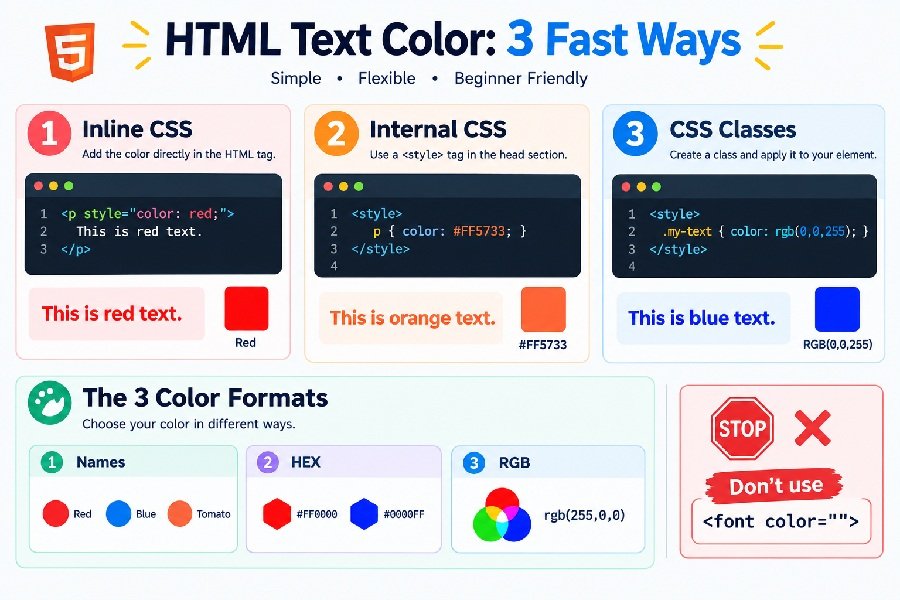
Before we start, here is a quick tip: Do not use the <font color="red"> tag.
It is an old method that modern browsers are slowly dropping. It makes your code messy. Instead, we use CSS (Cascading Style Sheets). It keeps your text and your design separate, which is exactly how professional web developers do it today.
Method 1: Inline CSS (The Fastest Way)
The quickest way to color a single piece of text is to use a style attribute directly inside your HTML tag.
Here is how it looks:
html
<p style="color: red;">This text is red.</p>
In this code, <p> is your paragraph. style tells the browser you want to design something, and color: red; tells it exactly what color to use.
How to color just one word
If you only want to change one word in a sentence, wrap that word in a <span> tag.
html
<p>I want this word to be <span style="color: blue;">blue</span> and the rest to stay black.</p>
Method 2: The 3 Ways to Pick a Color
When you use CSS, you can pick colors in three different ways:
1. Color Names
This is the easiest way. CSS understands over 140 color names like red, blue, green, tomato, and gold.
html
<h1 style="color: tomato;">This heading is tomato red!</h1>
2. HEX Codes
This is what most professionals use. A HEX code starts with a hashtag (#) followed by six numbers and letters.
html
<p style="color: #FF5733;">This text uses a HEX code for a nice orange.</p>
(Tip: Just search “color picker” on Google to find HEX codes for any color you want.)
3. RGB Values
RGB stands for Red, Green, and Blue. You give each color a number from 0 to 255.
rgb(255, 0, 0)is pure Red.rgb(0, 0, 0)is Black.
html
<p style="color: rgb(50, 168, 82);">This text is green using RGB.</p>
Method 3: Internal CSS (Keep Things Clean)
If you want to change the color of all your paragraphs, typing style="..." on every single one gets messy. Instead, you can use Internal CSS.
You put a <style> tag inside the <head> of your page. This changes everything at once.
html
<!DOCTYPE html>
<html>
<head>
  <style>
    /* All paragraphs become dark gray */
    p {
      color: #333333;
    }

    /* All H1 headings become navy blue */
    h1 {
      color: navy;
    }
  </style>
</head>
<body>
  <h1>This heading is navy blue.</h1>
  <p>This paragraph is dark gray.</p>
  <p>This one is also dark gray automatically!</p>
</body>
</html>
Method 4: CSS Classes (The Smartest Way)
What if you have 10 paragraphs, and you want 5 to be red and 5 to be green? You use CSS Classes. A class is like a label you create once and stick onto whatever text you want.
First, create the class in your <style> tag (notice the dot .):
html
<style>
  .red-text {
    color: red;
  }
  .green-text {
    color: green;
  }
</style>
Then, use the class in your HTML (no dot here):
html
<p class="red-text">This paragraph is red.</p>
<p class="green-text">This paragraph is green.</p>
<p class="red-text">This one is red again!</p>
This is great because if you want to change all the red text to purple later, you only change one line in your CSS.
Quick Comparison Table
| Method | Best For | Good or Bad? |
|---|---|---|
| Inline CSS | Changing one quick word. | Good for quick tests, but messy if overused. |
| Internal CSS | Small websites with one page. | Good for keeping all styles in one file. |
| CSS Classes | Big websites with many pages. | Best practice. Keeps HTML clean and easy to update. |
Common Mistakes and How to Fix Them
Even simple codes can sometimes go wrong. Here is how to fix the most common beginner errors:
- The text didn’t change color: Check your spelling. It must be
color(American spelling), notcolour. Also, make sure you put a semicolon;at the end. - HEX code didn’t work: Did you forget the hashtag? It must be
#FF0000, not justFF0000. - Class didn’t work: Make sure you put a dot in your CSS (
.my-text { }) but NO dot in your HTML (class="my-text"). - The old color is still showing: If you have a color set in
<style>and also inline in the text, the inline one usually wins. Check to make sure you aren’t overriding yourself.
Frequently Asked Questions (FAQs)
1. Can I make my text a gradient color?
Yes, but it requires a slightly advanced CSS trick using background-clip. For now, stick to solid colors until you get comfortable.
2. What is the difference between HEX and RGB?
They are just two ways to write the exact same color. HEX uses numbers and letters (#FF5733), and RGB uses numbers from 0-255 (rgb(255, 87, 51)).
3. Why doesn’t my color work on my other web pages?
If you put your <style> tag in one HTML file, it only works for that page. To color your whole website, you need to create a separate .css file and link it to all your pages.
4. How do I highlight text instead of changing the letters?
To change the background behind the text, use background-color instead of color.
Example: <span style="background-color: yellow;">Highlighted</span>
5. Are color names better than HEX codes?
Color names are easier to remember, but HEX codes give you millions of exact colors. For professional websites, HEX is the standard.
Conclusion
Learning how to change text color in HTML is a fun and simple skill. Start by playing around with inline styles and basic color names. Once you feel confident, move on to CSS classes. This modern way of coding will keep your website looking great and your code clean. Just remember: no more <font> tags!
abe pura article likh kar do
7 Genius Tricks: How to Change Text Color in HTML Easily
Meta Description: Learn how to change text color in HTML the easy way. Master inline CSS, classes, HEX, and RGB codes with simple examples for beginners.
URL Slug: how-to-change-text-color-in-html
If you are just starting with web design, learning how to change text color in HTML is one of the best first steps you can take. Adding color makes your website look nice and helps important words stand out.
A lot of old tutorials online will tell you to use a <font> tag, but that is outdated and no longer recommended. Today, we use something called CSS to change colors. It sounds fancy, but it is actually very easy. In this guide, I’ll show you the simple, modern way to color your text using basic codes.
The Simple Rule: Forget the Old <font> Tag
Before we start, here is a quick tip: Do not use the <font color="red"> tag.
It is an old method that modern browsers are slowly dropping. It makes your code messy. Instead, we use CSS (Cascading Style Sheets). It keeps your text and your design separate, which is exactly how professional web developers do it today.
Method 1: Inline CSS (The Fastest Way)
The quickest way to color a single piece of text is to use a style attribute directly inside your HTML tag.
Here is how it looks:
html
<p style="color: red;">This text is red.</p>
In this code, <p> is your paragraph. style tells the browser you want to design something, and color: red; tells it exactly what color to use.
How to color just one word
If you only want to change one word in a sentence, wrap that word in a <span> tag.
html
<p>I want this word to be <span style="color: blue;">blue</span> and the rest to stay black.</p>
Method 2: The 3 Ways to Pick a Color
When you use CSS, you can pick colors in three different ways:
1. Color Names
This is the easiest way. CSS understands over 140 color names like red, blue, green, tomato, and gold.
html
<h1 style="color: tomato;">This heading is tomato red!</h1>
2. HEX Codes
This is what most professionals use. A HEX code starts with a hashtag (#) followed by six numbers and letters.
html
<p style="color: #FF5733;">This text uses a HEX code for a nice orange.</p>
(Tip: Just search “color picker” on Google to find HEX codes for any color you want.)
3. RGB Values
RGB stands for Red, Green, and Blue. You give each color a number from 0 to 255.
rgb(255, 0, 0)is pure Red.rgb(0, 0, 0)is Black.
html
<p style="color: rgb(50, 168, 82);">This text is green using RGB.</p>
Method 3: Internal CSS (Keep Things Clean)
If you want to change the color of all your paragraphs, typing style="..." on every single one gets messy. Instead, you can use Internal CSS.
You put a <style> tag inside the <head> of your page. This changes everything at once.
html
<!DOCTYPE html>
<html>
<head>
  <style>
    /* All paragraphs become dark gray */
    p {
      color: #333333;
    }

    /* All H1 headings become navy blue */
    h1 {
      color: navy;
    }
  </style>
</head>
<body>
  <h1>This heading is navy blue.</h1>
  <p>This paragraph is dark gray.</p>
  <p>This one is also dark gray automatically!</p>
</body>
</html>
How to color headings and paragraphs together
If you want your headings and paragraphs to share the same color, just group them with a comma in your CSS:
html
<style>
  h1, h2, p {
    color: #4A90E2;
  }
</style>
Method 4: CSS Classes (The Smartest Way)
What if you have 10 paragraphs, and you want 5 to be red and 5 to be green? You use CSS Classes. A class is like a label you create once and stick onto whatever text you want.
First, create the class in your <style> tag (notice the dot .):
html
<style>
  .red-text {
    color: red;
  }
  .green-text {
    color: green;
  }
</style>
Then, use the class in your HTML (no dot here):
html
<p class="red-text">This paragraph is red.</p>
<p class="green-text">This paragraph is green.</p>
<p class="red-text">This one is red again!</p>
This is great because if you want to change all the red text to purple later, you only change one line in your CSS. You don’t have to edit every single paragraph.
Quick Comparison Table
| Method | Best For | Good or Bad? |
|---|---|---|
| Inline CSS | Changing one quick word. | Good for quick tests, but messy if overused. |
| Internal CSS | Small websites with one page. | Good for keeping all styles in one file. |
| CSS Classes | Big websites with many pages. | Best practice. Keeps HTML clean and easy to update. |
Common Mistakes and How to Fix Them
Even simple codes can sometimes go wrong. Here is how to fix the most common beginner errors:
- The text didn’t change color: Check your spelling. It must be
color(American spelling), notcolour. Also, make sure you put a semicolon;at the end of your rule. - HEX code didn’t work: Did you forget the hashtag? It must be
#FF0000, not justFF0000. - Class didn’t work: Make sure you put a dot in your CSS (
.my-text { }) but NO dot in your HTML (class="my-text"). - The old color is still showing: If you have a color set in
<style>and also inline in the text, the inline one usually wins. Check to make sure you aren’t overriding yourself. - The color isn’t exactly what you wanted: Different screens show colors differently. What looks like a perfect red on your laptop might look slightly orange on a phone.
Frequently Asked Questions (FAQs)
1. Can I make my text a gradient color?
Yes, but it requires a slightly advanced CSS trick using background-clip. For now, stick to solid colors until you get comfortable with the basics.
2. What is the difference between HEX and RGB?
They are just two ways to write the exact same color. HEX uses numbers and letters (#FF5733), and RGB uses numbers from 0-255 (rgb(255, 87, 51)).
3. Why doesn’t my color work on my other web pages?
If you put your <style> tag in one HTML file, it only works for that page. To color your whole website, you need to create a separate .css file and link it to all your pages.
4. How do I highlight text instead of changing the letters?
To change the background behind the text, use background-color instead of color.
Example: <span style="background-color: yellow;">Highlighted</span>
5. Are color names better than HEX codes?
Color names are easier to remember, but HEX codes give you millions of exact colors. For professional websites, HEX is the standard.
Conclusion
Learning how to change text color in HTML is a fun and simple skill. Start by playing around with inline styles and basic color names. Once you feel confident, move on to CSS classes. This modern way of coding will keep your website looking great and your code clean. Just remember: no more <font> tags!