
Introduction
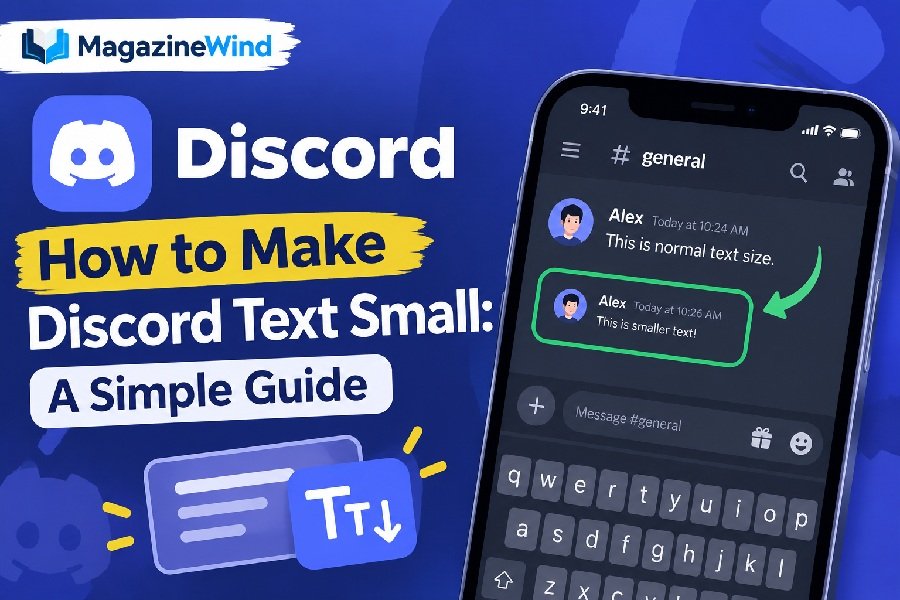
If you have ever wanted to add a quiet little caption under a message or make your Discord nickname stand out, you might have wondered how to make discord text small. The good news is that Discord gives you a few simple ways to do it. Some methods shrink only the text you send in a message, while others change the size of the entire app on your screen. This guide will walk you through both types so you can pick the one that fits your needs.
Can You Make Text Smaller on Discord?
Yes, but it helps to understand what “small text” actually means on Discord. There are two completely different things people usually want:
Making a single message look smaller. Discord supports a formatting trick called “subtext” that makes one line of text appear smaller than the rest of your message . This is just a formatting style, not a change to the app’s settings.
Changing the overall font size of the Discord app. This makes every message, channel name, and menu item smaller or larger on your screen . This is a personal display setting that only affects how Discord looks to you.
The methods are separate, and you can use both at the same time if you like. It is also worth knowing that Discord does not let you choose a completely different font for the app itself. The interface uses Discord’s own font, and your only official option is to scale it up or down .
How to Make Discord Text Small Using Subscript
Wait—subscript is not the same as subtext. Let’s clear this up because it trips people up.
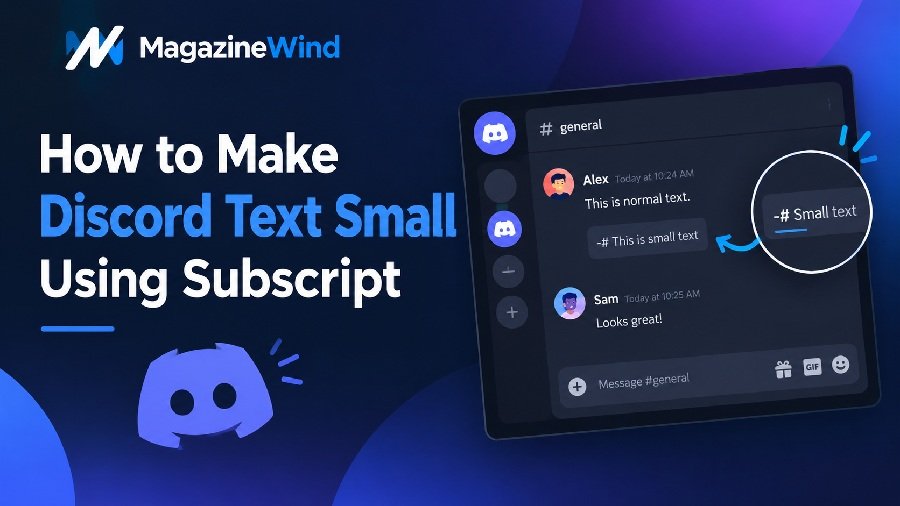
Subtext is Discord’s official small-text formatting. You type -# before your text, and Discord shows that line in a smaller size . This is the reliable, built-in way to make a single line look smaller in a message.
Subscript is something different. It refers to tiny Unicode characters that sit below the normal text line, like this: ₛₘₐₗₗ. These are not made by Discord. People generate them on third-party websites by swapping regular letters for special Unicode characters, then copy and paste the result into Discord .
Subscript Unicode has a big limitation: there are no subscript versions for many letters, including b, c, d, f, g, q, w, y, and z . So if you try to write a sentence in subscript, several letters will stay full-sized and the result will look broken. For most people, Discord’s official -# subtext is the better choice. It is simple, works on all platforms, and does not depend on special characters that might display incorrectly.
How to Make Discord Text Smaller on Desktop
Using subtext on a computer is quick and easy.
Step 1: Open Discord and go to any chat or direct message.
Step 2: In the message box, type -# followed by a space. For example: -# this is small text.
Step 3: Type your message after the space. You will see a preview of the smaller text as you type.
Step 4: Press Enter to send your message .
The -# code must be at the very beginning of a line for it to work. If you want to add a small line in the middle of a message, hold Shift and press Enter to start a new line, then type -# on that new line .
You can also make your entire Discord interface smaller on desktop. Here’s how:
Step 1: Click the gear icon near your username in the bottom-left corner to open User Settings.
Step 2: Select Appearance from the left sidebar.
Step 3: Find the Chat Font Scaling slider and drag it to the left to make chat text smaller .
Step 4: You can also adjust the Zoom Level slider to shrink or enlarge the whole app interface. Changes save automatically .
How to Make Discord Text Smaller on Mobile
The -# subtext trick works on mobile exactly the same way.
Step 1: Open the Discord app and tap into a chat.
Step 2: Tap the message box and type -# followed by a space.
Step 3: Type your text. You will see the smaller preview.
On mobile, you can also change the app’s text size, but the options are a little different depending on your phone.
On Android:
Step 1: Tap your profile icon in the bottom bar.
Step 2: Tap the gear icon to open Settings, then tap Appearance.
Step 3: Use the Zoom Level slider to adjust the overall size. Toggle on Classic Chat Text Size if you want a slightly smaller chat font .
On iPhone and iPad:
Discord’s in-app text size setting is not available on iOS. Instead, you need to change your device’s system-wide text size.
Step 1: Open your iPhone’s Settings app.
Step 2: Go to Display & Brightness > Text Size.
Step 3: Drag the slider to make text smaller. This change will apply to Discord and other apps .
How to Change Discord Font Size in User Settings
The Appearance menu is where you control how big or small Discord looks on your device. This is separate from the message formatting tricks above.
On desktop, you have three main sliders:
- Chat Font Scaling: Changes the size of text inside messages only .
- Space Between Message Groups: Adjusts the gap between different people’s messages .
- Zoom Level: Changes the size of the entire Discord window, including menus and sidebars .
On Android, you get Zoom Level and the Classic Chat Text Size toggle .
Remember that these settings only affect your view. If you make your font smaller, your friends will still see their own settings. Your changes do not affect anyone else .
Discord Text Formatting Tips
Once you know how to make text smaller, you can combine it with other formatting for clearer messages.
Use #, ##, or ### at the start of a line for large, medium, and small headers . A -# subtext line under a header makes a nice caption.
Wrap text in **double asterisks** for bold, *single asterisks* for italics, and __double underscores__ for underline . You can combine them: __**bold and underlined**__.
If you want to hide a spoiler, put ||two vertical bars|| around it .
One thing to avoid: do not use Unicode “tiny text” generators for anything important. Those characters often do not display on all devices, and they can break search and accessibility features .
Common Problems and Their Solutions
The -# code is not working. Make sure there is a space after -# and that the code is at the very start of a line. It will not work if it is in the middle of a line without a line break before it .
Subscript Unicode looks broken. This is normal. Many letters simply do not have subscript versions. Stick with Discord’s official -# subtext instead .
I changed the font size but nothing looks different. Check that you are adjusting the right setting. Chat Font Scaling only affects message text. Zoom Level affects the whole app. Try moving the slider further in the direction you want .
The text size option is missing on my iPhone. Discord does not offer in-app font scaling on iOS. Use your iPhone’s system text size settings instead .
Frequently Asked Questions
Does -# work in Discord usernames and nicknames?
No. The -# subtext formatting only works in chat messages. For nicknames, you would need to use Unicode small-text characters pasted from a generator, but these come with the display limitations mentioned earlier .
Can I change the Discord font to something else?
No. Discord uses its own font and does not provide a way to switch to a different typeface. You can only change the size .
Will small text show up the same for everyone?
Discord’s -# subtext looks the same for everyone because it is part of the app’s formatting system. Unicode small text from generators may look different or broken on some devices .
Can I use small text in a code block?
No. Code blocks override other formatting, so the -# code will not work inside a code block .
Does changing the font size affect other people?
No. Font scaling is a personal display setting. It only changes what you see on your own screen .
Conclusion
Learning how to make discord text small comes down to two simple ideas. For a single message or caption, use the -# subtext code before your text. It is built into Discord, works on desktop and mobile, and displays correctly for everyone. If you want the whole app to look smaller, go to User Settings > Appearance and adjust the font scaling or zoom level. Just remember that message formatting and app settings are different things, and neither one changes the font type itself. With these methods, you can keep your Discord chats clean, readable, and exactly the size you want.